

Pay with your Digital Wallet
A digital wallet lets you carry your debit and credit-card details securely on a phone, watch, or tablet. Skip the plastic and pay almost anywhere—in-store, online, or in-app—with a single tap.
Your credit cards can be added to:



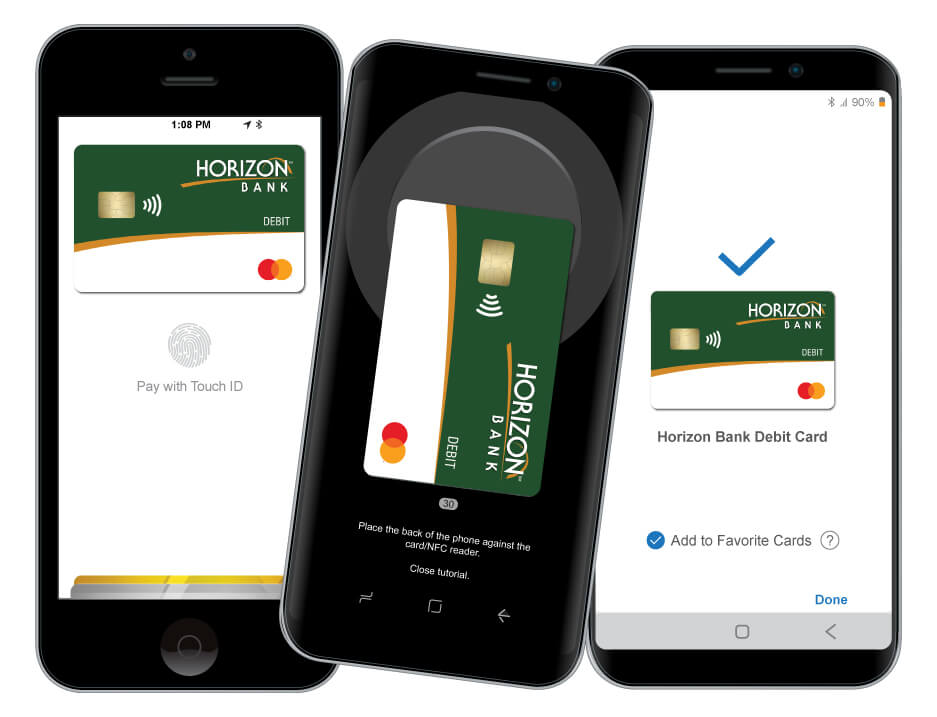

Here’s how your digital wallet works
- Add your Horizon Bank debit or credit card to the digital wallet you’d like to use.
- When you pay at a participating business, open your digital wallet and select your Horizon Bank debit Mastercard®.
- Receive payment confirmation on your device.
Benefits of a digital wallet

Pay Securely
A digital wallet replaces your actual card number with a unique digital number, so merchants never see or store your full card details.

Access Your Card Easily
Confirm your identity with a PIN, fingerprint, or face/iris scan, then tap to pay at participating businesses.

Use It Almost Anywhere
Pay with your digital wallet at millions of businesses worldwide—in stores, online, or in apps.

Maintain Control
Whether you pay with a physical card or a digital wallet, the choice is yours—and Horizon Bank is pleased to offer convenient, secure digital-wallet options.
Other ways to pay with your debit card.
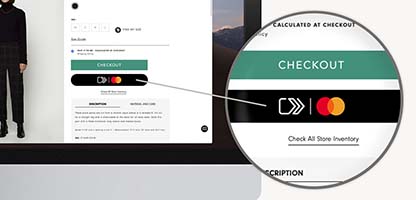
Click to Pay
Use your Horizon Bank Debit Mastercard® with Click to Pay to speed through checkout without re-entering your card or shipping information.
Once you enroll, you can pay faster and more securely online—no passwords to remember and no extra accounts to manage.
-
 Stay in controlPayment information stored securely in one place - so it's there when you need it.
 -
 Smart securityIntelligent security helps recognize you at checkout.
 -
 Bypass passwordsSpeed through checkout with no passwords to remember.
Digital Wallet FAQs
How do I set up Google Wallet?
To set up Google Wallet you can use the following instructions
- Download and install the Google Wallet app from the Google Play Store.
- Open the Google Wallet app, and Sign In (if prompted).
- Tap the View Wallet button.
- Next, tap on the Add to Wallet button.
- Tap Payment Card, and then New credit or debit card.
- Next you will need to hold your card in the camera window that pops up. After the camera captures your card's information, verify your card's expiration date and CVC number.
- Verify your billing address.
- Tap the Save and continue button at the bottom of the screen.
- Read the Terms of Service, and tap the Accept button at the bottom of the screen.
- Choose to verify your card information with your bank via text or email, and hit continue.
- Next, you'll find yourself on the Verify Your Card screen. Choose where you want to receive the verification number.
- Tap the Continue button.
- When you receive the number, type it into the field on the Verification Number screen and tap the Submit button.
Click to Pay FAQs
App Store is a service mark of Apple Inc. Apple and the Apple logo are trademarks of Apple Inc., registered in the U.S. and other countries. Android, Google Play, and the Google Play logo are trademarks of Google Inc. Data-usage charges may apply; check with your mobile-phone carrier for details.
Don’t have a Horizon checking account?
We offer a variety of personal checking options and can help you choose the one that fits you best.

The website you have selected is an external site not operated by Horizon Bank. Horizon does not endorse and is not responsible for the content links, privacy policy or security policy of this website or app you are about to visit. Click Proceed to continue or Cancel to go back.